

You can check whether your resume is ATS-friendly for free, with no tool and no account. Paste its text into a plain text editor and read it, search your PDF for your job title, read what an application form fills in from your upload, then compare your skills with the posting. Each test shows a different way a parser can lose your words.
The free ATS check
Run it on the exact file you plan to upload, not on the document you edit. Tick each item, and if one fails, the next section says what caused it.
1. The paste test
- Open your resume file, select all (Ctrl+A, or Cmd+A on a Mac), copy it, and paste it into Notepad or TextEdit in plain text mode
- Your name, email, phone and city are there, as text, at the top
- Every section heading comes through: Summary, Experience, Education, Skills
- Your jobs come out in order, each with its title, employer and dates together
- Your skills appear as words, all of them
- Bullets, dashes and accented letters came out as normal characters, not boxes or question marks
- No words are glued together, split in two or spaced out letter by letter
2. The file itself
- In the PDF, you can highlight a line of text, and searching (Ctrl+F) for your job title finds it
- In Word or Google Docs, select all highlights every line, including your name and contact details
- The file type is the one the posting asks for. If it doesn't say, a .docx or a PDF you exported yourself
- The file name says whose resume it is, such as Jordan_Lee_Resume.pdf
3. A real application form
- When a careers site fills the form in from your upload, every field is right: titles, employers, dates, school and contact details
4. The posting
- Each skill, tool and certification the posting names that you really have appears on your resume, in the posting's wording
How to run the paste test
The paste strips out styling and leaves the text in the order your file stores it, which is close to what a parser starts from. MCPHS's career development center says to keep editing if the plain-text version "has misplaced words or sections, is missing details from your original resume, or has characters saved incorrectly."
- Windows: open Notepad and paste. Notepad holds only plain text, so nothing else is needed.
- Mac: open TextEdit, choose Format, then Make Plain Text, then paste.
- Any computer: in Word, use Save As and choose Plain Text (.txt), then open the new file. MIT's career center suggests this version of the test.
- Starting from a PDF: copy the PDF's text into a blank Word document instead. The University at Buffalo's career resource center recommends this check before you submit.
Then read the result top to bottom as if you'd never seen the resume. You're not judging how it looks. You're checking that nothing is missing and that each piece sits next to the piece it belongs to.
What each item catches
A failed item points to a layout choice. The fixes are covered in detail in the guide to an ATS-friendly resume format. This table gets you to the right one.
| What you see | The likely cause | The fix |
|---|---|---|
| Name or contact details missing | They're in the page header or footer, or in a text box | Type them as plain lines at the top of the body |
| Lines from two sections mixed together | Two columns or a sidebar, read straight across | Move everything into one column |
| Dates far from their jobs | Dates lined up with a table or set off in their own column | Put dates on the same line as the title and employer |
| Skills missing | A skills graphic, rating bars or an icon grid | Write skills as words, separated by commas or bars |
| Whole sections missing | Text inside images or text boxes | Retype it as normal text |
| Boxes or question marks | Fancy bullets, symbols or icons | Use round bullets or hyphens, and words like "Phone:" |
| Words glued together or split | Tables, letter spacing or hyphenated line breaks | Remove the table, reset spacing, and don't hyphenate across lines |
| Nothing pastes, or the PDF search finds nothing | A scanned or image-only PDF | Export a new PDF from Word or Google Docs |
| Wrong fields on the application form | Any of the above, read by that employer's parser | Fix the file, then correct the fields before you submit |
MIT's guide adds a detail most checklists miss: if a word like "molecule" breaks across two lines as "mole-" and "cule," you might not get credit for it.
The autofill preview is the closest you'll get
When you upload a resume to a company's careers site and it fills in the form for you, you're seeing the employer's own parser at work. No free checker shows you more than that.
Use it as a test. Start an application to a job you want, upload your file, and read every field before you submit. A job title in the employer field, a missing job or dates merged into one line all point back to the table above. Fix them in the form for this application, and fix the file before the next one.
Free checkers, and what they can't tell you
A free online checker can run the same tests in one step and spot things you might miss, such as a hidden table. What none of them can do is tell you how a particular employer's system will rank you, because there's no universal ATS score and each system parses and is set up differently. Indeed's guide notes that each system can vary in how it parses resumes. That's why two checkers can give the same file very different numbers. If yours gave you a percentage, what a resume match score means explains how to read it.
Rolefitly's free resume checker reads your PDF or Word file and tells you, in plain sentences, what it found. It flags:
- text it couldn't read, or text that came out as symbols
- a two-column layout, and how many tables and images the file has
- a missing email, phone number, job dates, skills section or Experience heading
- dates written in more than one format, or a date range that ends before it starts
- a file name that doesn't say whose resume it is
It also shows the plain text it pulled from your file, so you can do the paste test's reading step on the same page. It doesn't claim to predict how an employer's ATS will rank you.
The last check: the posting's keywords
A file that reads perfectly can still leave out the words a recruiter searches for. That's item 4, and it needs the job posting.
List the skills, tools, licenses and certifications the posting names, then look for each on your resume. Use the posting's wording for the ones you really have, inside a bullet that shows what you did with them. Leave out the ones you don't have. The guide to finding keywords in a job description walks through the manual method.
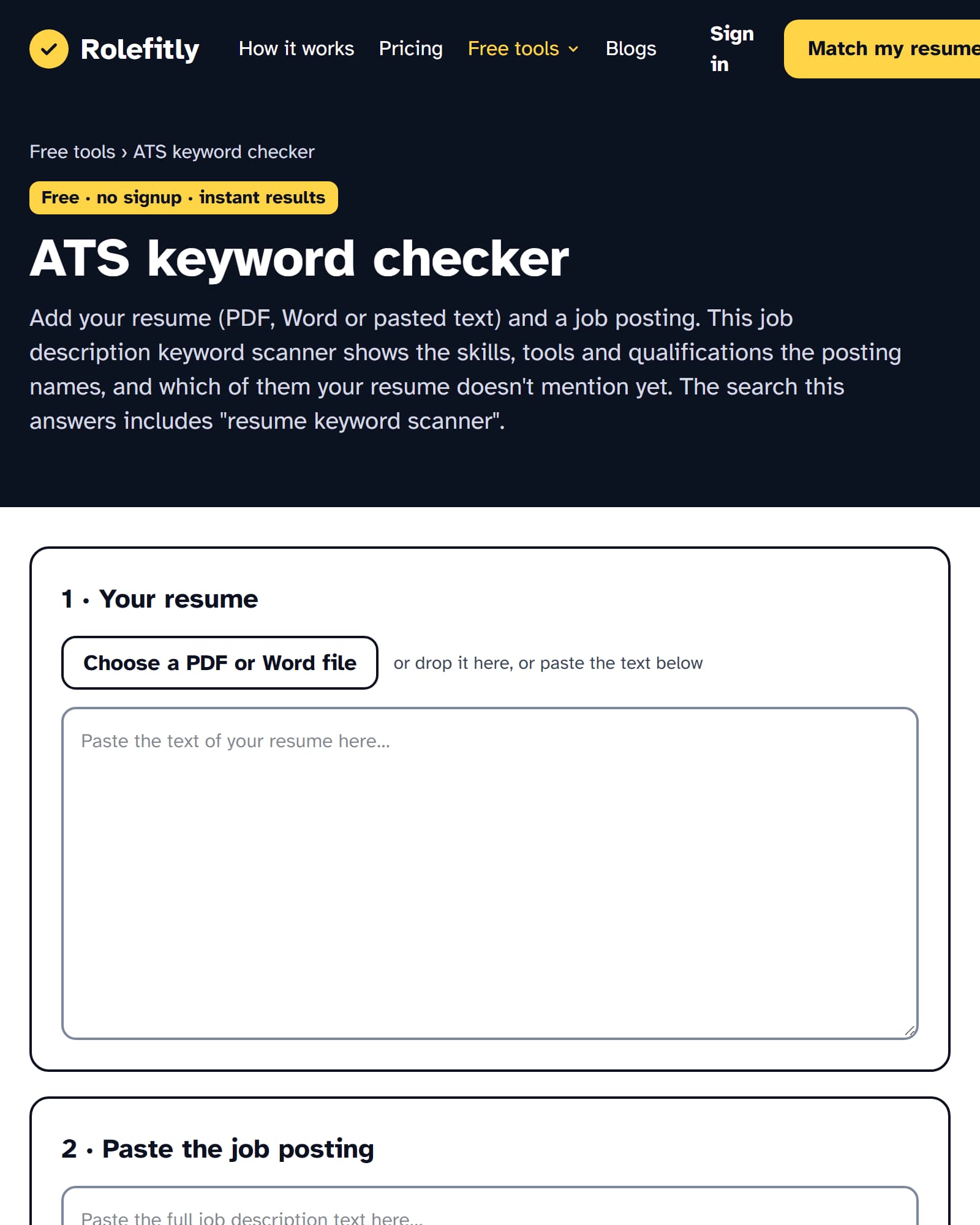
To do it faster, paste the posting and add your resume to Rolefitly's free ATS keyword checker. It lists the skills, tools and qualifications the posting names, and which of them your resume doesn't mention yet. Treat that list as a list to check, not a list to add.
When to run the check again
Run the whole list before your first application, then again whenever the file changes in a way that could move text around:
- after you switch templates, or export from a design tool such as Canva, which MIT's guide warns can add formatting that confuses an ATS
- after you add a new job, section or skills layout
- after you save in a new file type
- whenever an application form fills in fields wrongly
For a single posting, items 3 and 4 are the ones to repeat each time. The paste test only needs repeating when the file itself changes.